
Master Rummy App Not Installed? 7 Safe Android Fixes
Fix Master Rummy APK installation problems on Android by checking the source, system version, storage, permissions, download and existing app conflicts.
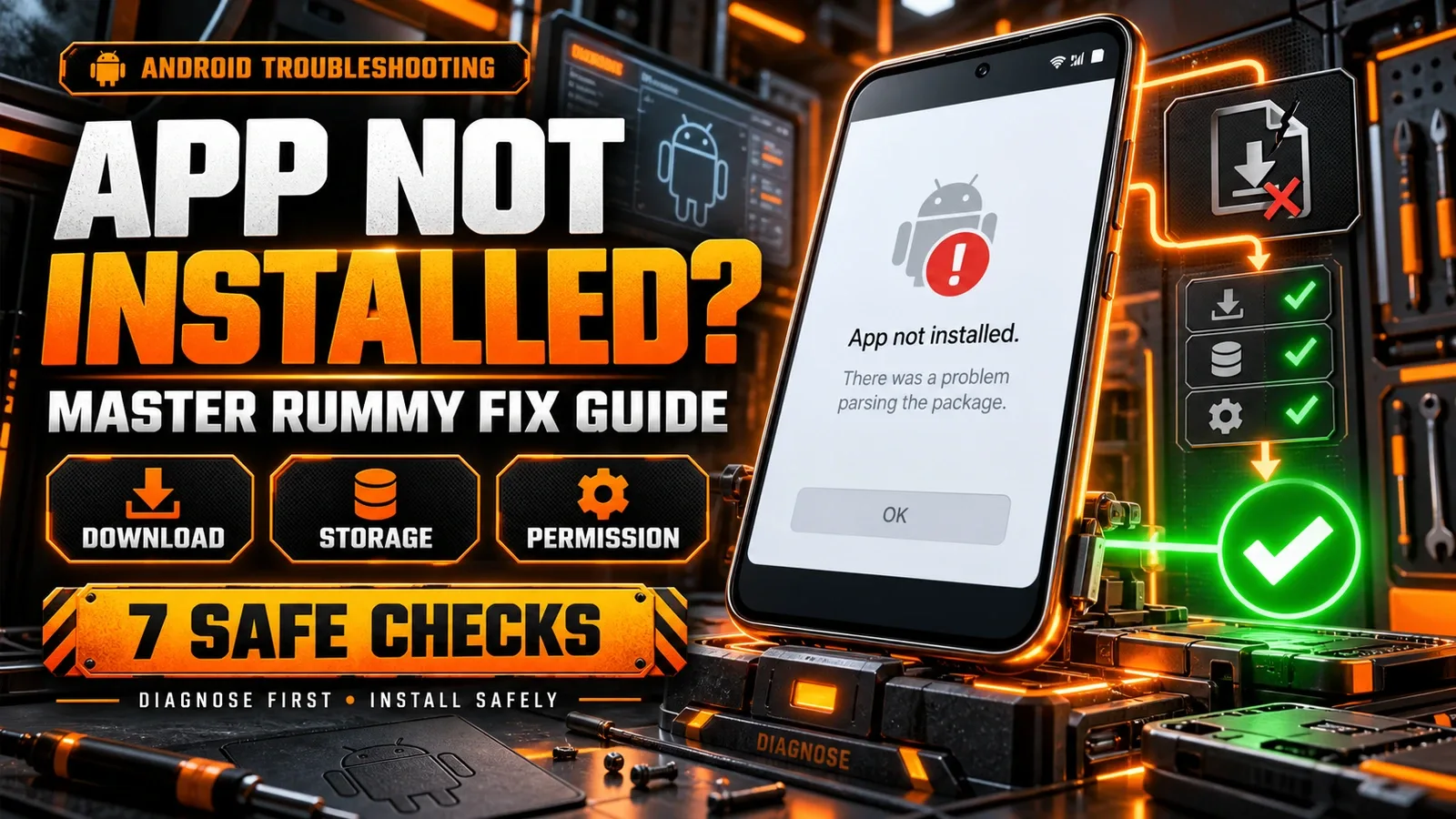
Android’s “App not installed” message can have several causes: an incomplete APK download, an unsupported system version, limited storage, a permission setting or a conflict with an existing installation.
Do not solve the problem by downloading several files from random APK sites or disabling every Android security feature. Use the seven checks below in order. They move from the safest and most common checks to situations that need official support.
Quick Fix Checklist
- Confirm that the APK came from the official MASTER RUMMY website.
- Check that the phone meets the currently published Android requirement.
- Make enough free storage for both the APK and installation process.
- Allow installation only for the browser or file app you intentionally used.
- Delete an incomplete download and download one clean copy.
- Check whether an existing installation is causing a version or signature conflict.
- Restart the device, record the exact error and contact official support if it continues.
At the time this guide was reviewed, the official MASTER RUMMY website displayed Android 7+ for its APK. Product requirements can change, so recheck the current download page before installing.
First Identify Where Installation Failed
An Android app installation has several stages:
Official page → APK download → Android package check → installation permission → app installation → first launch
“It does not work” is too broad. Identify the stage:
- Download never starts: investigate the browser, network, storage and download link.
- Download stops early: suspect an interrupted or incomplete file.
- Android blocks the file: review the source-specific installation permission.
- Package opens but says “App not installed”: check compatibility, storage and existing-app conflicts.
- Installation finishes but the app closes: this is a launch problem, not an installation problem.
This distinction prevents you from repeating a download when the actual issue is elsewhere.
Fix 1: Verify the Official APK Source
Start at the official MASTER RUMMY website and use its own Android download action. Do not search for the APK filename and assume the first mirror is official. An APK can be copied, renamed or repackaged while keeping a familiar name.
Before opening the file, confirm:
- the website address is the expected MASTER RUMMY domain;
- you used the download button on that site;
- the browser did not redirect you to an unrelated APK catalogue;
- you did not receive the file through a group chat or unknown message.
Read the official MASTER RUMMY APK download guide for the complete source-verification process.
Fix 2: Check Android Compatibility
The official site currently shows Android 7+ as the minimum requirement. On most Android phones, you can find the system version under Settings → About phone → Android version, although the exact menu name varies by manufacturer.
If the phone runs an older version, repeated downloads will not make the APK compatible. Do not use modified APK files that claim to remove the requirement. Use a supported device or check the official site for updated compatibility information.
A supported Android number does not guarantee that every device configuration will work. Architecture, manufacturer software and security policy can also affect installation. If Android 7 or later is shown but installation still fails, continue through the checks.
Fix 3: Free Storage Before Installing
The device needs more space than the visible APK file size. Android may create temporary files while checking and installing the package. If storage is almost full, the download may complete but installation can still fail.
Open the device storage settings and make comfortable free space by removing files you recognise or moving personal media safely. Avoid deleting system folders or app data you do not understand.
After freeing space:
- close the installer;
- restart the phone if storage was critically low;
- open the clean APK from the Downloads folder;
- try the installation once more.
Fix 4: Allow Installation for the Correct Source
Android may block an APK downloaded outside an app store until you permit installation from the specific browser or file manager that opened it. Modern Android versions usually manage this permission per source rather than through one universal switch.
When Android shows a security prompt:
- read which browser or file app is requesting permission;
- continue only if it is the app you intentionally used for the official download;
- do not grant unrelated accessibility, device-administrator or remote-control permissions;
- after installation, return the setting to your preferred state if you do not need it again.
Menu wording differs by Android version and phone brand. Follow the device’s own prompt rather than instructions that ask you to disable all protection.
Fix 5: Remove an Incomplete Download and Get One Clean Copy
A weak connection, interrupted browser session or failed storage write can leave a partial APK. The filename may look normal even when the package is incomplete.
If the download stopped, showed zero progress for a long time or produced a parsing error:
- delete only the incomplete MASTER RUMMY download;
- connect to a stable network;
- return to the official website;
- download one new copy;
- wait for the browser to confirm completion before opening it.
Do not keep multiple similarly named APK files such as “MasterRummy (1)” and “MasterRummy (2).” It becomes easy to open an older or incomplete copy by mistake.
Fix 6: Check for an Existing-App Conflict
Android may reject an installation when a version of the app is already present but was installed from a different package or signed by a different publisher key. This can happen after using an unofficial mirror, a modified build or a previous test version.
First decide whether you are performing a new installation or an update. If MASTER RUMMY is already installed:
- open the existing app and check whether it provides an official update path;
- return to the same official distribution source used previously;
- do not install a second APK over an unknown or modified build;
- do not uninstall immediately if you are unsure how your account or local data is protected.
Uninstalling an app can remove local data. Before removal, confirm that you know the correct account details, that recovery options work, and that any important local information is backed up. When the source of the existing app is unclear, contact official support before changing it.
Fix 7: Restart, Record the Error and Contact Support
A restart clears temporary installer state and is safer than changing many settings at once. Restart the phone, open the single verified APK and try again.
If it still fails, record:
- phone manufacturer and model;
- Android version;
- browser or file manager used;
- the exact error message;
- whether MASTER RUMMY was previously installed;
- the approximate time of the attempt;
- which checks in this guide you completed.
Send this non-sensitive information through the official MASTER RUMMY Support page. The official support and contact guide includes a copyable request template and screenshot-safety checklist.
What Common Android Messages Usually Point To
“App Not Installed”
This is a general result, not a complete diagnosis. Check system compatibility, storage, the downloaded file and conflicts with an existing installation.
“There Was a Problem Parsing the Package”
The package may be incomplete, damaged or incompatible with the device. Delete the failed download, verify the Android requirement and obtain one clean copy from the official page.
“For Your Security, Your Phone Is Not Allowed to Install Unknown Apps”
Android is asking you to review source-specific installation permission. Confirm that you intentionally downloaded the official APK and grant permission only to the browser or file app involved.
“Not Enough Storage Space”
Free more space than the APK’s visible size, then retry. The installer needs working space for temporary and installed files.
Error wording varies by Android version and manufacturer, so copy the full message when contacting support.
Do Not Use These Risky “Fixes”
- Do not download “patched,” “modded” or “unlocked” APK files.
- Do not disable every Android security feature.
- Do not install remote-control software for a stranger claiming to be support.
- Do not share a password, OTP, UPI PIN or device unlock code.
- Do not factory-reset the phone for one installation error.
- Do not delete unrelated system files to create space.
- Do not uninstall an existing app before considering account and local-data access.
For additional checks before installing any Rummy app, read How to Choose a Rummy App and Is Online Rummy Safe?.
MASTER RUMMY Installation FAQ
Why does MASTER RUMMY say “App not installed”?
Common areas to check are Android compatibility, free storage, incomplete download, source-specific installation permission and conflict with an existing app. Work through the checks in order rather than changing everything at once.
What Android version is currently required?
The official site displayed Android 7+ when this guide was reviewed. Recheck the current official download page because requirements can change.
Should I uninstall the old app before installing?
Not automatically. First confirm whether you are updating, where the current app came from and whether your account and local data can be recovered. Contact official support when the existing installation source is uncertain.
Is it safe to enable “Install unknown apps”?
Only consider the source-specific permission after confirming that you downloaded the APK from the official website. Grant it only to the browser or file manager involved, not to unrelated apps.
Can I use a different APK website if installation fails?
That adds another unverified party and may introduce an outdated, altered or incompatible package. Return to the official MASTER RUMMY distribution route instead.
What information should I send support?
Send the phone model, Android version, exact error, approximate time, installation source and safe troubleshooting steps. Never send your password, OTP, PIN or full payment credentials.
Diagnose First, Then Install Safely
The safest fix is a controlled sequence: verify the official source, check Android compatibility and storage, review the correct installation permission, replace an incomplete download, investigate an existing-app conflict and then contact official support with a precise error report.
Once installation works, beginners can continue with the free online Rummy practice guide without treating installation success as a reason to take financial risk.
Editorial note: Android menus and MASTER RUMMY requirements may change. Use the current instructions shown by your device and the official MASTER RUMMY website. This guide does not recommend bypassing device security.